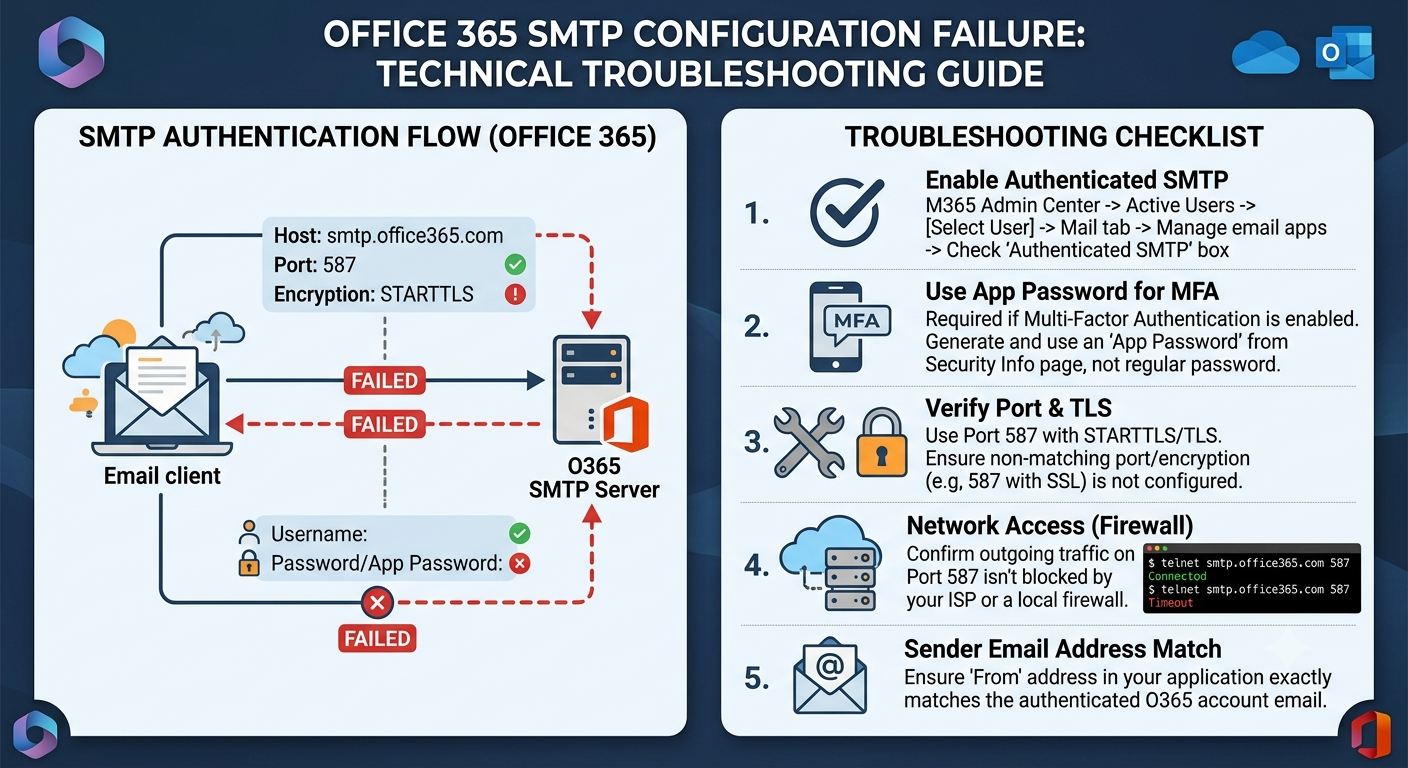
Setting up an SMTP (Simple Mail Transfer Protocol) server to send emails through Microsoft 365 (formerly Office 365) is a standard procedure for businesses. Whether you are connecting a WordPress website, a printer/scanner, an ERP system, or a custom application, relying on Microsoft’s secure cloud infrastructure ensures reliable email delivery.
However, it is incredibly common to hit a wall during this setup. You click “Test Connection,” and instead of a success message, you are hit with a generic SMTP Server Configuration Failed or Authentication Unsuccessful error.
If you are staring at that error right now, don’t panic. This guide will walk you through why this happens and how to fix it step-by-step.
The Three Ways to Connect to Office 365 SMTP
Before diving into the fixes, it is crucial to understand how you are trying to connect. Microsoft offers three distinct methods for SMTP relay. Misconfiguring settings between these methods is the number one cause of failure.
| Feature | Method 1: SMTP Auth | Method 2: Direct Send | Method 3: SMTP Relay |
| Port | 587 (recommended) or 465 | 25 | 25 |
| TLS/Encryption | STARTTLS or TLS | STARTTLS | STARTTLS (Optional) |
| Authentication | Required (Username/Password) | None | None (Authenticated by IP) |
| Sending Limits | 10,000 recipients per day | Subject to overall tenant limits | Subject to overall tenant limits |
| Can send to… | Anyone (Internal & External) | Only Internal M365 Users | Anyone (Internal & External) |
Common Causes of SMTP Failures and How to Fix Them
1. Security Defaults & Multi-Factor Authentication (MFA)
By far, the most frequent culprit behind Authentication Unsuccessful errors is Microsoft’s strict security posture. By default, new Microsoft 365 tenants have Security Defaults enabled. While great for security, Security Defaults block basic authentication—which traditional SMTP uses—and force Multi-Factor Authentication (MFA).
If your application or printer only asks for a username and password, and your account has MFA enabled, the connection will fail.
The Fix:
- Use App Passwords: If your account uses MFA, you cannot use your regular password. Go to your Microsoft My Account page, navigate to Security Info, and generate an App Password. Use this unique 16-character password in your SMTP configuration instead.
- Enable SMTP AUTH on the Mailbox: Microsoft disables SMTP authentication at the tenant or mailbox level by default.
- Go to the Microsoft 365 Admin Center.
- Navigate to Users > Active Users and select the mailbox you are using.
- Click the Mail tab and select Manage email apps.
- Check the box for Authenticated SMTP and save changes.
2. Modern Authentication (OAuth2) vs. Basic Authentication
Microsoft has officially deprecated Basic Authentication (username and password) for standard email clients. While SMTP Auth is still supported for legacy devices, Microsoft actively discourages it. If your application supports OAuth2 (like modern WordPress SMTP plugins), you should use it.
The Fix:
Switch your application’s connection method from “Traditional SMTP” to “Microsoft 365 / Outlook” if the plugin or software supports it. This will prompt you to log in via a secure Microsoft pop-up window, granting the application an access token rather than storing your password.
3. Incorrect Port and Encryption Combinations
SMTP is incredibly picky about matching ports with the correct encryption protocols. A single mismatch will cause the connection to time out.
- Port 587: Requires STARTTLS (sometimes just labeled as TLS). This is the modern standard for SMTP Auth.
- Port 465: Requires Implicit TLS/SSL. (Less common for Office 365, but used by some legacy systems).
- Port 25: Used primarily for Direct Send or SMTP Relay. It usually requires no encryption or explicit STARTTLS.
The Fix:
Double-check your application settings. If you selected Port 587, ensure the SSL/TLS dropdown is set to STARTTLS or TLS, not SSL. If your system only offers an “SSL” checkbox, try changing the port to 465 or switching to Port 587 with SSL unchecked to see if it negotiates STARTTLS automatically.
4. Firewall Restrictions and ISP Blocking
Sometimes, the issue isn’t with Microsoft or your app—it’s your network. Many Internet Service Providers (ISPs) and enterprise firewalls block outbound traffic on Port 25 and sometimes Port 587 to prevent spam.
The Fix:
Run a network test from the server or machine hosting the application. Open your command line or terminal and run a Telnet test:
Bash
telnet smtp.office365.com 587
If the screen goes blank or returns a Microsoft banner, your network is open. If it says “Connection refused” or “Timed out,” your local firewall or ISP is blocking the port. You will need to create an outbound firewall rule to allow traffic through that port.
5. DNS and SPF Record Misconfigurations
If you are using Method 2 (Direct Send) or Method 3 (SMTP Relay), you aren’t logging in with a password. Instead, Microsoft identifies your server by its public IP address or your domain name. If your DNS records aren’t set up perfectly, Microsoft will reject your emails to protect against spoofing.
The Fix:
- Check your MX Record: Ensure your application is pointing to your specific MX endpoint (e.g.,
yourdomain-com.mail.protection.outlook.com) rather thansmtp.office365.comwhen using Direct Send. - Update your SPF Record: Your domain’s SPF (Sender Policy Framework) record tells the world which IPs are allowed to send mail on your behalf. If your web server’s public IP isn’t listed, Office 365 will drop the connection.
- Standard M365 SPF:
v=spf1 include:spf.protection.outlook.com -all - If sending from a web server IP (e.g., 192.0.2.55):
v=spf1 ip4:192.0.2.55 include:spf.protection.outlook.com -all
- Standard M365 SPF:
Summary Checklist for a Flawless Setup
If you are still struggling, run through this quick configuration checklist for the standard SMTP AUTH method:
- SMTP Server/Host:
smtp.office365.com - Port:
587 - Encryption:
STARTTLSorTLS - Username: The full email address (e.g.,
[email protected]) - Password: Your account password (or an App Password if MFA is on)
- Mailbox Status: “Authenticated SMTP” must be explicitly enabled in the Microsoft 365 Admin Center.
By methodically checking authentication rules, port alignments, and DNS records, you can isolate exactly where the handshake is breaking down and restore your email functionality.
Also Read: The Ultimate Guide to Modern Cybersecurity: Demystifying Malwarebytes – My Tech Blaze
Source: Microsoft 365 SMTP Settings (2026): Host, Port & TLS | ScaledMail