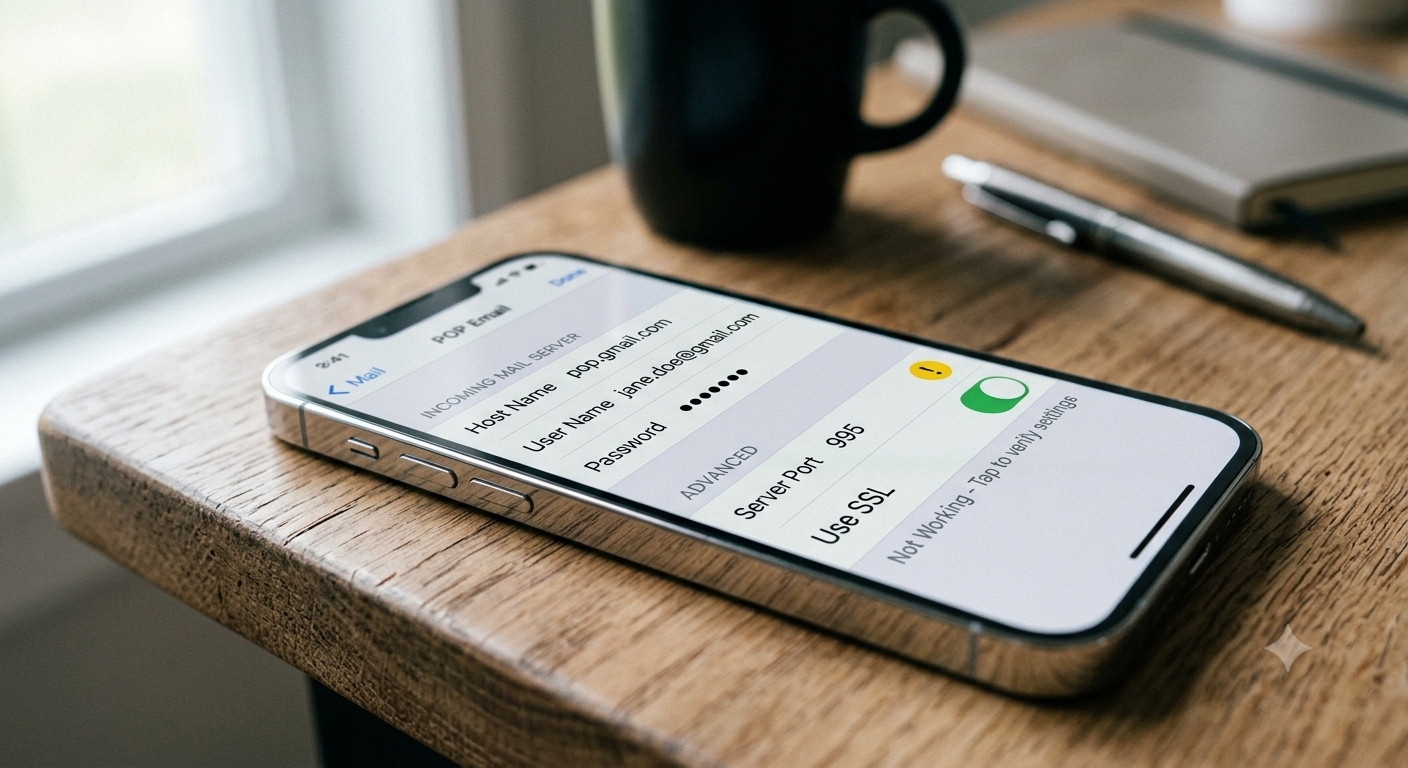
When a POP (Post Office Protocol) email account stops working on an iPhone, it usually manifests as a persistent “Cannot Get Mail” error, an incorrect password prompt, or a failure to connect to the incoming server. Because POP downloads emails directly to a single device and often deletes them from the server, its configuration is significantly more rigid than modern IMAP setups.
This technical guide isolates the root causes of POP email failures on iOS and provides a structured, step-by-step resolution protocol.
Core Architecture of POP vs. iOS
To troubleshoot POP effectively, it helps to understand why it fails more frequently than IMAP on mobile devices.
POP establishes a direct, single-point connection to the mail server’s inbox. It is designed under the assumption that one client manages the mail. When an iPhone attempts to connect via POP, it can easily conflict with desktop clients (like Outlook or Mac Mail) accessing the same account, resulting in server lockouts. Furthermore, modern email providers increasingly mandate strict security protocols that legacy POP configurations struggle to maintain without manual intervention.
Diagnostics & Resolution Protocol
Before altering deep system settings, verify basic network integrity. Switch from Wi-Fi to cellular data (or vice versa) to rule out localized DNS routing issues or firewall blocks on standard email ports. Once network stability is confirmed, proceed through the following technical fixes.
- Verify Legacy App Passwords & App-Specific AuthenticationModern email providers use OAuth 2.0 (Modern Authentication) for security. Legacy POP setups do not natively support this interactive login window on iOS. If you recently enabled Two-Factor Authentication (2FA) on your email account, your standard password will no longer work in the iOS Mail settings. You must log into your email provider’s web portal via a browser, navigate to security settings, and generate a unique App-Specific Password (a 16-character alphanumeric code). Input this code into the password field on your iPhone instead of your master password.
- Audit Inbound and Outbound Server ConfigurationsNavigate to Settings > Mail > Accounts and select the failing account. Tap Account Settings to inspect the server architecture. Ensure the account type explicitly states POP (if it says IMAP, the account must be re-added).Verify the standard technical configurations:
- Incoming Mail Server (POP3): Ensure the Host Name matches your provider’s exact specification (e.g.,
pop.mailserver.com). - Incoming Server Port: Tap Advanced. For secure connections, turn Use SSL ON and set the server port to 995. If your provider uses non-SSL (not recommended), set the port to 110.
- Outgoing Mail Server (SMTP): Tap SMTP, then tap the Primary Server. The Host Name must match your provider’s outbound server (e.g.,
smtp.mailserver.com). Turn Use SSL ON and set the server port to 465 or 587. - Authentication: Ensure this is set to Password for both incoming and outgoing configurations.
- Incoming Mail Server (POP3): Ensure the Host Name matches your provider’s exact specification (e.g.,
- Resolve Simultaneous Connection LockoutsPOP servers generally allow only one active session at a time. If a desktop computer or tablet is actively checking your POP account, the server will reject the iPhone’s connection request. Close the email client on your computer entirely. Wait roughly 15 minutes for the mail server to clear the hung session, then attempt to fetch mail on your iPhone. To prevent this permanently, adjust your desktop client’s settings to check for new mail less frequently (e.g., every 30 minutes instead of every 5 minutes).
- Configure ‘Delete from Server’ ParametersBecause POP downloads data locally, your iPhone needs strict instructions on how to handle the server’s master copy. Go to Settings > Mail > Accounts > [Your Account] > Advanced. Under the Deleted Messages section, locate Remove. Set this to Never if you want your desktop computer to remain the primary archive, or After seven days if you want a buffer period. If this is misconfigured, your iPhone may wipe out mail before your computer can download it, making it appear as though your email settings are broken.
Summary of Standard POP3 Technical Specifications
If you are unsure what numbers to input during the configuration check, refer to this reference matrix for standard secure POP configurations:
| Parameter | Secure Configuration (Recommended) | Legacy Configuration (Unsecure) |
| Incoming Port (POP3) | 995 | 110 |
| Incoming Encryption | SSL / TLS (Enabled) | None |
| Outgoing Port (SMTP) | 465 or 587 | 25 or 587 |
| Outgoing Encryption | SSL / TLS or STARTTLS | None |
| Username Syntax | Full email address ([email protected]) | Sometimes just user (Provider dependent) |
The Nuclear Option: Re-Adding the Account
If the settings are structurally correct but the handshake continues to fail, the iOS mail database configuration for that account may be corrupted.
CRITICAL WARNING FOR POP ACCOUNTS: Because POP downloads emails locally, deleting a POP account from your iPhone will permanently delete any emails stored on the device that have already been wiped from the mail server. Before deleting the account, log into your email provider’s webmail via a desktop browser to verify which emails still exist on the server. If critical emails only exist on your iPhone, back them up or forward them to an alternative address before proceeding.
How to Cleanly Re-Add:
- Navigate to Settings > Mail > Accounts > [Failing Account].
- Tap Delete Account and confirm.
- Restart your iPhone to clear cached network states.
- Go back to Accounts and tap Add Account.
- Select Other (do not select logos like Outlook or Yahoo, as they default to IMAP).
- Tap Add Mail Account, enter your basic credentials, and tap Next.
- At the top of the next screen, toggle the selection tab from IMAP to POP.
- Manually input the Incoming and Outgoing server hostname, username, and password fields as outlined in the matrix above.
Industry Recommendation: The Case for IMAP
If your email provider supports it, transitioning from POP to IMAP (Internet Message Access Protocol) is highly recommended for mobile environments.
IMAP leaves the master messages on the mail server and simply caches a synchronized view on your iPhone. This allows you to view emails simultaneously across multiple devices, eliminates port conflicts, natively supports modern OAuth security configurations on iOS, and ensures you never lose local data if your iPhone is damaged or misplaced.
Source: If you can’t receive email on your iPhone or iPad – Apple Support