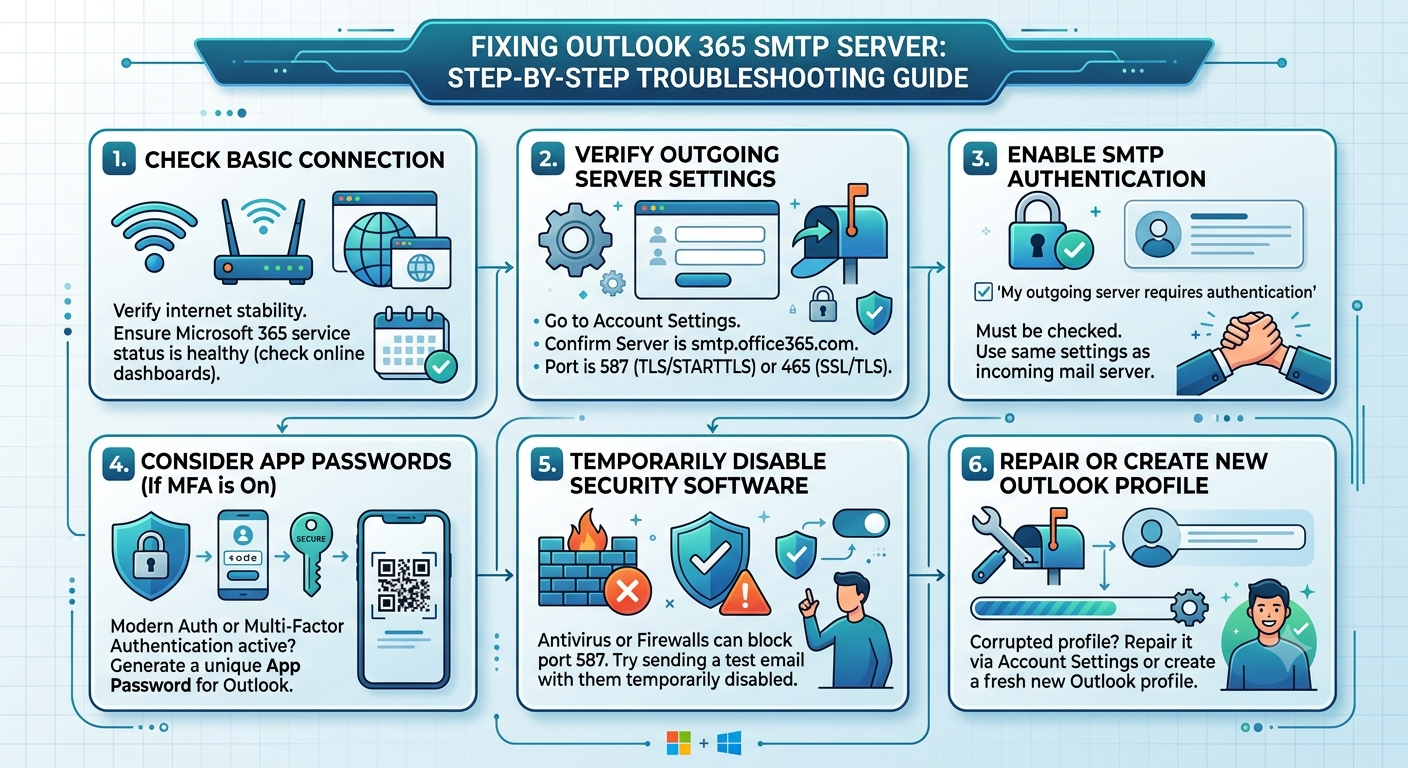
Few things are more frustrating than hitting “Send” on an important email, only to have it sit stubbornly in your Outbox or bounce back with an cryptic error code. If your Outlook 365 outgoing SMTP (Simple Mail Transfer Protocol) server has stopped working, you are not alone. This is one of the most common issues faced by Microsoft 365 users.
Fortunately, whether the culprit is a misconfigured port, a corrupted profile, or an aggressive antivirus program, most SMTP errors can be resolved with a systematic approach. Here is a comprehensive guide to diagnosing and fixing your Outlook 365 outgoing server issues.
1. Recognize the Symptoms and Error Codes
Before diving into the fixes, it helps to understand what Outlook is trying to tell you. SMTP failures usually manifest in a few distinct ways:
- Emails stuck in the Outbox: The message simply refuses to leave.
- Send/Receive error pop-ups: Outlook displays a progress bar that ends in a failure notice.
- Common Error Codes: You might see codes like
0x800CCC0E(cannot connect to the server),0x80042109(Outlook cannot connect to your outgoing server), or550(relaying disallowed/authenticated needed).
2. Check the Basics First
Before changing deep technical settings, rule out the simplest explanations:
Verify Your Internet Connection
A flickering or weak internet connection can easily interrupt the handshake between Outlook and the SMTP server. Try opening a web browser and loading a heavy webpage, or run a quick speed test to ensure stability.
Check Microsoft 365 Service Status
Sometimes, the issue isn’t on your end. Microsoft’s servers occasionally experience outages. Visit the official Microsoft 365 Service Status page or check platforms like Downdetector to see if a widespread cloud outage is affecting Exchange Online.
Look for Large Attachments
If a specific email is blocking your Outbox, check its size. Outlook 365 generally caps attachments at 20 MB to 25 MB depending on server configurations. A massive file can clog the outgoing queue, preventing all subsequent emails from sending. Drag the email out of your Outbox to your Drafts folder, remove the attachment, and try sending a test email.
3. Verify and Correct SMTP Server Settings
The most frequent cause of SMTP failure is incorrect account configuration, especially if you recently updated your software or changed your password.
If you are using a standard Microsoft 365/Exchange account, these settings are usually handled automatically. However, if you are configuring Microsoft 365 SMTP for a custom domain, IMAP, or POP3 configuration, you must verify the manual settings.
The Correct Outlook 365 SMTP Settings:
- SMTP Server Address:
smtp.office365.com - Port:
587(Highly Recommended) or465 - Encryption Method:
STARTTLS(orTLS) for Port 587;SSL/TLSfor Port 465. - Authentication: Requires a username (your full email address) and password.
How to Check These Settings in Outlook:
- Open Outlook and click on File in the top-left corner.
- Select Account Settings > Account Settings.
- Choose your email account from the list and click Change (or double-click the account).
- Look for the Outgoing mail server (SMTP) field and ensure it reads
smtp.office365.com. - Click on More Settings and navigate to the Outgoing Server tab.
- Crucial Step: Ensure the box checked “My outgoing server (SMTP) requires authentication” is ticked, and select “Use same settings as my incoming mail server.”
- Switch to the Advanced tab. Set the Outgoing server (SMTP) port to
587and selectSTARTTLSorTLSfrom the encrypted connection dropdown. - Click OK, then Next, and let Outlook run its account test.
4. Resolve Password and Multi-Factor Authentication (MFA) Conflicts
If your organization recently enabled Multi-Factor Authentication (MFA), your standard account password will no longer work for basic SMTP authentication.
Modern Authentication vs. App Passwords
Legacy SMTP protocols often struggle with modern security prompts. If MFA is active, you may need to generate an App Password through your Microsoft account security dashboard. Use this unique, 16-character generated password in place of your regular password in Outlook’s SMTP settings.
Furthermore, ensure that Modern Authentication is enabled in your tenant organization if you are an administrator, as Microsoft has been actively deprecating legacy/basic authentication protocols for security reasons.
5. Inspect Antivirus and Firewall Interference
Security software is designed to protect you, but it can be overzealous. Many third-party antivirus programs feature “Email Scanning” or outbound firewalls that monitor port 587 or 465.
If the security software misidentifies your outgoing email traffic as spam, it will silently block the SMTP connection.
- Test: Temporarily disable your third-party antivirus or Windows Defender Firewall for 5 minutes.
- Try sending a test email. If it goes through, you will need to whitelist
outlook.exeorsmtp.office365.comwithin your security software’s settings, or disable outbound email scanning entirely (your real-time shield will still protect you from incoming threats).
6. Repair the Outlook Profile or Application
If your settings are flawless but the SMTP server still rejects connections, your Outlook profile or local data files may be corrupted.
Repair the Profile
- Go to File > Account Settings > Account Settings.
- Select your email and click the Repair button.
- Follow the on-screen prompts and restart Outlook.
Create a New Outlook Profile
If a repair doesn’t work, building a fresh profile often clears out deep-seated configuration bugs.
- Close Outlook. Open the Windows Control Panel and search for Mail.
- Click Show Profiles, then click Add.
- Name the new profile, enter your email credentials, and let Outlook automatically configure the cloud connection.
- Set the new profile as the default and launch Outlook.
Conclusion
An SMTP breakdown can disrupt your entire workflow, but it is rarely permanent. By systematically checking your connection, verifying the smtp.office365.com port settings, and accounting for MFA security requirements, you can get your outbound emails moving again. If you are operating within a corporate environment and these steps fail, reach out to your IT administrator to ensure your account hasn’t been restricted from sending outbound mail due to a security flag.
Also Read: Troubleshooting Microsoft 365 SMTP Server Setup Failures – My Tech Blaze
Source: Configure email account and get outgoing mail to work – Microsoft Q&A